

In FlutterFlow, a Page represents a single screen in your app.
Widgets are the building blocks of your app's UI, each representing a fundamental element contributing to its layout and functionality.
To quickly add a Button widget to your Page, you can either drag and drop widgets onto the canvas from the Widget Palette Tab (Tab+1) or add a new widget to the widget tree from the Widget Tree tab (Tab+3). To learn more about widgets and widget trees, check the overview guide.
Actions allow you to add interactivity into your app. They define what happens in response to user activity or events, like updating data or navigating to new screens.
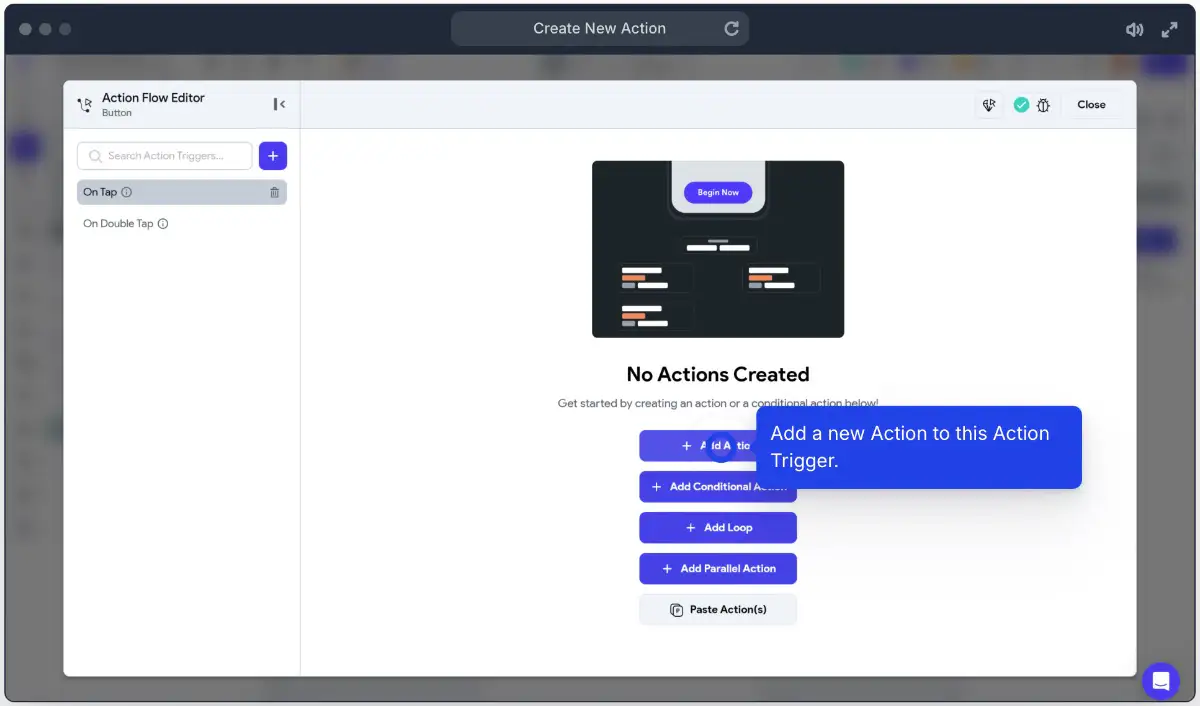
To create a new action, open the Action Flow Editor from the Action Properties Panel (second tab in the right panel) and select "On Tap" as the action trigger for the button.
In this quick demo below, we demonstrate how to add multiple actions to the "On Tap" trigger of the Button widget you just added.
You can also accelerate your development with over 50 templates to choose from.
If you have any questions, check out our online Training, community forum, or contact our support team.
Helping the world build great products. You are receiving this email because you signed up on flutterflow.io. © 2024 FlutterFlow, Inc. Want to change how you receive these emails? You can update your preferences or unsubscribe from this list.